Docs / Getting started
First steps
Open a project, start a Claude session and a shell, and find your way around the window.
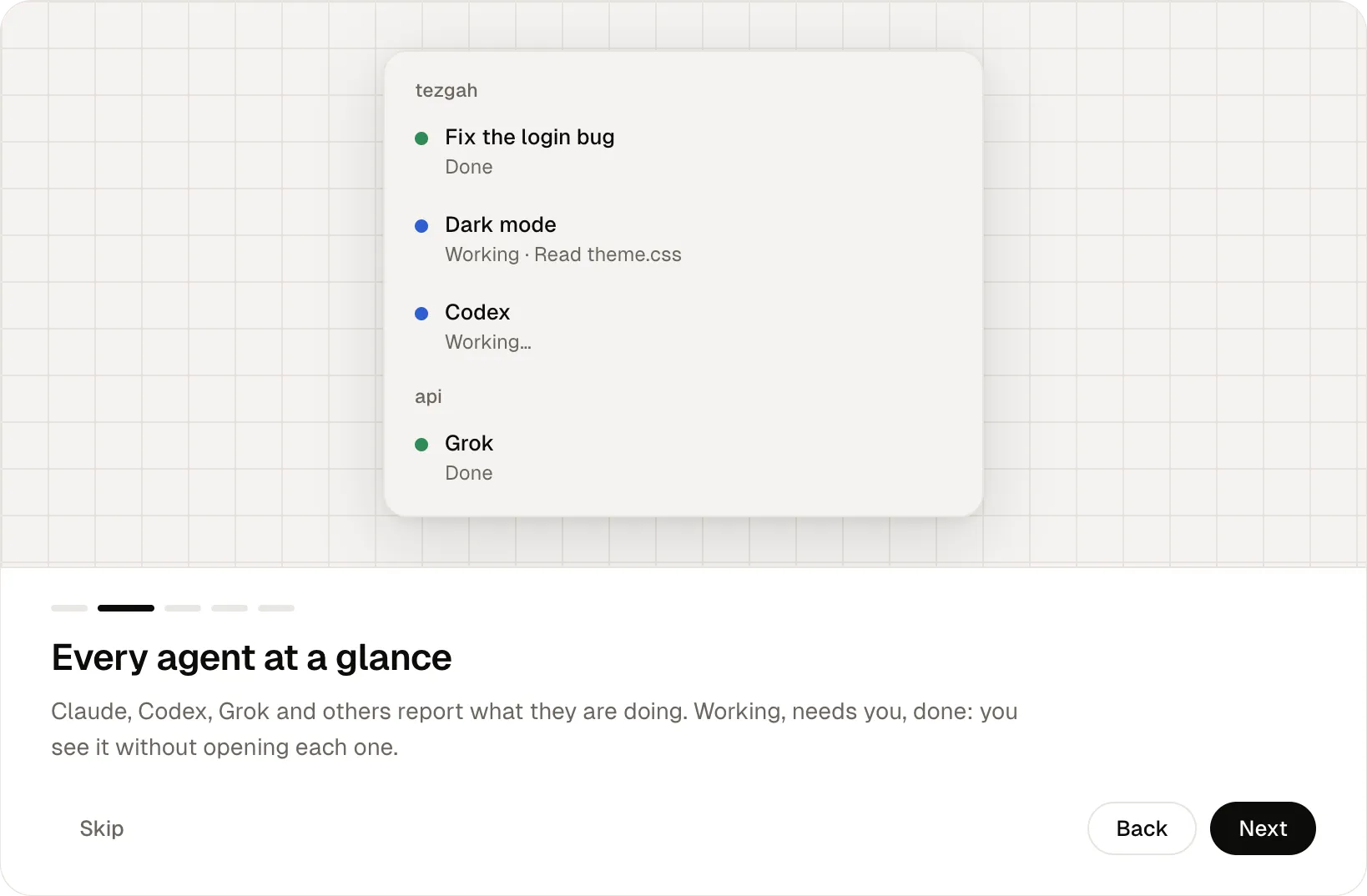
The first time you open Tezgah, a short tour shows what it does. Skip it if you like; Settings → Show the Introduction plays it again.
Open a project
Press ⌘O (Ctrl+Shift+O on Windows and Linux) and pick a folder. It appears in the sidebar as a project.
You can also open folders from outside Tezgah: Finder’s Open With, Open in Tezgah in Windows Explorer, or your Linux file manager. Settings → Opening a folder starts decides whether that starts Claude or a shell.
Start a session
- ⌘T: a new Claude session in the selected project.
- ⇧⌘T: a new shell session.
- ⌥⌘T: a new session in a worktree, on its own branch. See Worktrees.
- The + button at the top of the sidebar has all of these, plus SSH, saved layouts and your own commands.
Find your way around
- The sidebar lists projects and their sessions. Each session shows its status, what it’s doing, its branch and the ports it listens on.
- The header of a session shows its title and status, the Changes button, and buttons to open a browser and split.
- The top of the sidebar has the + menu, notifications, recent conversations and the gear for Settings.
- The bottom of the sidebar shows your Claude and Codex plan limits. The Tezgah mark there opens this website.
- ⌘P opens the quick switcher: type to jump to any session or run a command.
- ⌘J jumps to the next session that needs you.
Use it as your everyday terminal
Tezgah is a full terminal. On macOS and Linux you can make it the terminal your desktop opens, in Settings → Default terminal. See Settings.
Next: Sessions & projects.